Terminal meets browser
Start native Claude Code with ccr, detach and continue in the web UI. Return to the terminal with the same session and context.
 CC Remote
RUN ON YOUR COMPUTER · CONTINUE ON YOUR DEVICES
Claude Code and Codex run on your computer. Check progress, answer approvals and continue the conversation from your phone. Pick it up at your desk when you return.
Host: Windows / Linux / macOS · Native client & tray: Windows x64
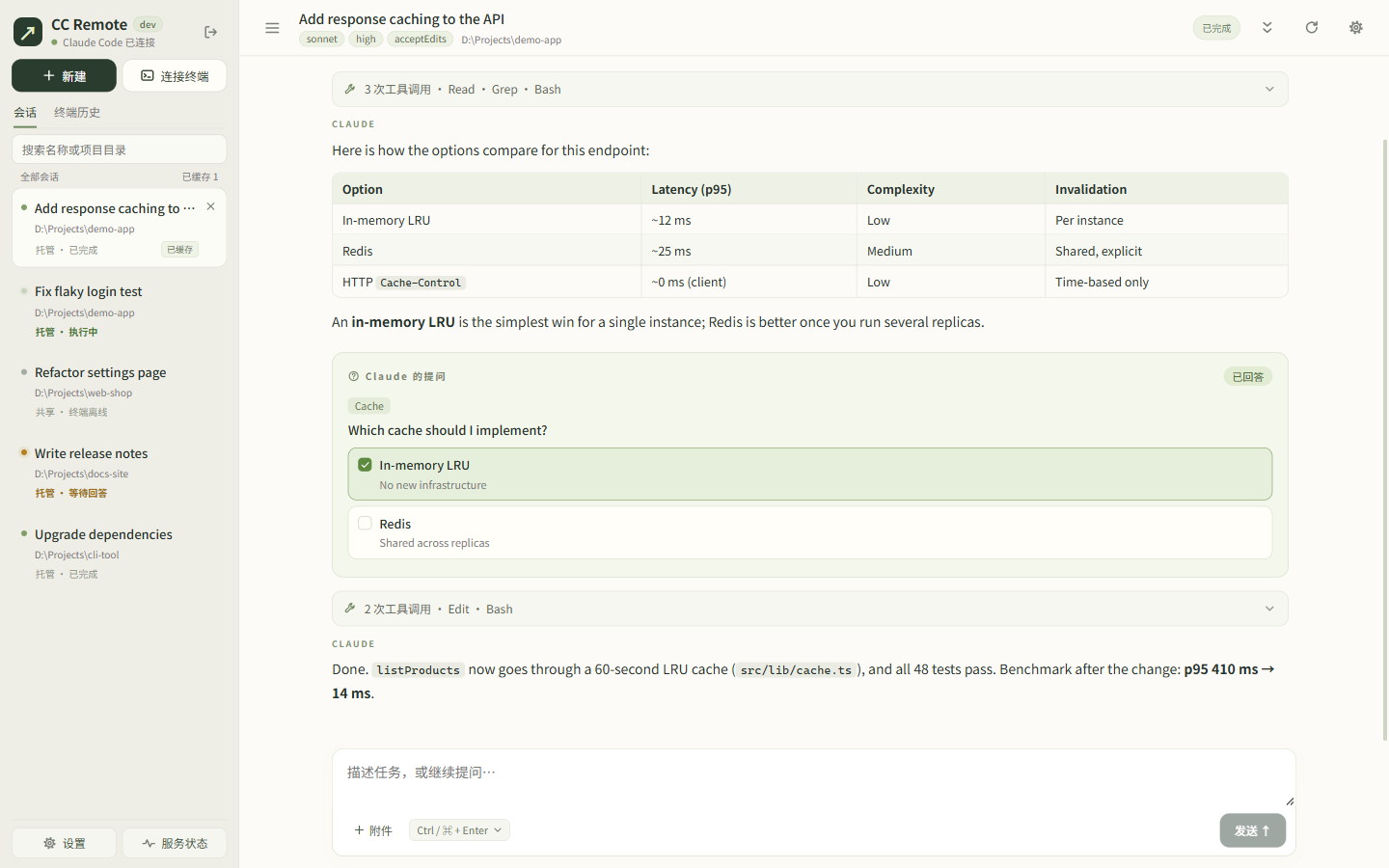
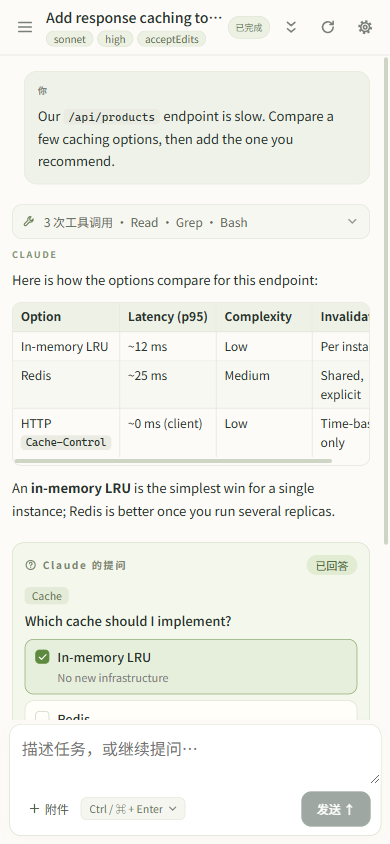
One self-hosted backend connects your local CLIs, project files and devices. Model requests still go to your configured provider.
Start native Claude Code with ccr, detach and continue in the web UI. Return to the terminal with the same session and context.
Start managed sessions in the web or desktop client, with tool activity, approvals and questions. Codex supports managed sessions and history import; terminal handoff is for Claude Code.
Switch between projects and computers, find active tasks and keep work running when you close the browser.
Read CC-Switch profiles and compare supported official account readings and sampling history. Quotas depend on what the provider reports.
Hover for the Windows native usage panel and click the tray to open the client. Compare account quotas without opening the main window.
Preview Markdown, code and images, and send attachments. The desktop client connected to a local host can also open folders or launch a terminal there.
First install and sign in to Claude Code or Codex CLI on the host. You only need the CLI you use. CC Remote does not supply model accounts.
PowerShell 5.1 / 7 · Backend + client + built-in tray
irm https://github.com/huanfeng/cc-remote/releases/latest/download/install-desktop.ps1 | iexTerminal · Backend + web UI
curl -fsSL https://github.com/huanfeng/cc-remote/releases/latest/download/install.sh | shRepeat the installer to update, keeping accounts, history and configuration. For Windows ARM64, use the backend installer in the guide.
Run the installer, open a new terminal and use ccr status to confirm the service is running.
Connect through Local service in the Windows client. Or open http://127.0.0.1:8787, enter your local token and choose a project on the host.
Configure LAN access or your own HTTPS / VPN connection, then open the host address on your phone. The default listener is local only.
Install, find your token and start a task
Network requirements and web deployment (中文)
Accounts, sampling and history (中文)
Development and project structure (中文)
The web client needs your own running, reachable host. It provides neither cloud execution nor a preconfigured account.
An access token grants code execution on the host. LAN HTTP is unencrypted; use a trusted network or HTTPS for remote access and protect your token. Security guide (中文) ↗